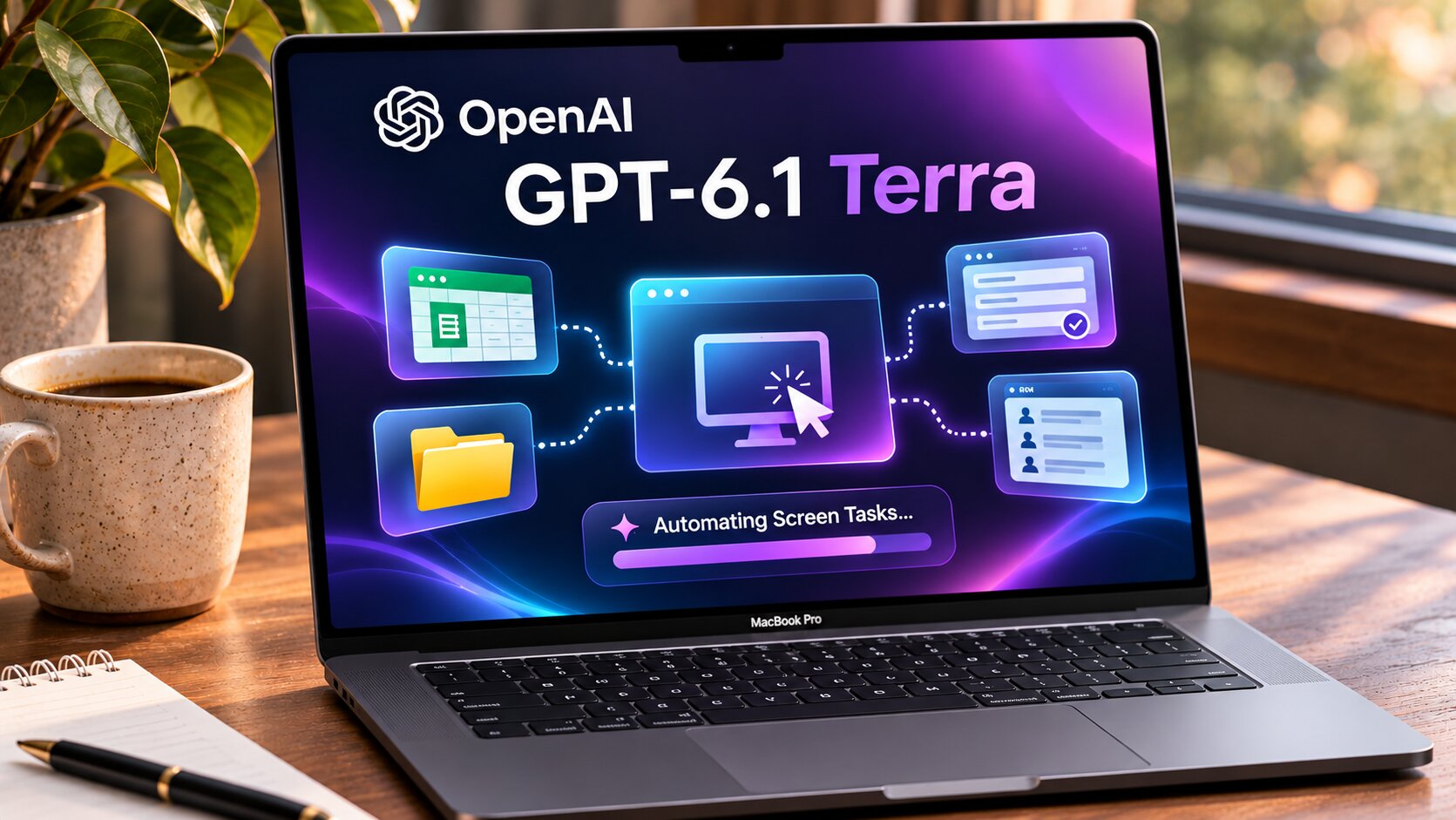
How to Use GPT-6.1 Terra: A Beginner’s Setup Tutorial
If you just heard about GPT-6.1 Terra and want to try it on your own computer, this beginner tutorial walks through how to use GPT-6.1 Terra from first login to your first finished task. OpenAI launched the model on October 26, 2026, for people who want AI help with everyday software jobs like data entry, file sorting and form filling, and the setup takes only a few minutes.
How do you start using GPT-6.1 Terra?
To use GPT-6.1 Terra, open the ChatGPT desktop app on Windows or macOS, switch to ChatGPT Work (or Codex for coding), and pick GPT-6.1 Terra from the model list. Then limit its access to the files the job needs, describe the task in plain words, and review the results before anything is final.
Before you begin: a quick checklist
Run through these points first so the setup goes smoothly:
- The right app: the official ChatGPT desktop app on a Windows or macOS computer.
- The right workspace: ChatGPT Work for general business tasks, or Codex if you work with code and repositories. Terra is not offered in the standard Chat experience.
- The right plan: model access depends on your subscription, device and workspace permissions. Company accounts may have admin limits.
- A test folder: a separate folder holding copies of the files you want Terra to handle.
Web and mobile versions of ChatGPT Work exist, but reaching local desktop files and apps requires the supported desktop setup.
Step-by-step: how to use GPT-6.1 Terra for the first time
Step 1: Open ChatGPT Work or Codex
Launch the desktop app and sign in. Choose Work for everyday office workflows. Choose Codex when the job involves development tools or a software repository.
Step 2: Select GPT-6.1 Terra
Open the model options and choose GPT-6.1 Terra. Can’t find it? Check that your plan and workspace support it, and ask your administrator if you use an organization account. Model options and usage limits change, so OpenAI’s own guide to getting started with Work and Codex is the best place to confirm what your account includes.
Step 3: Share only the folder or app the job needs
When the app asks for permissions, keep them narrow. Point Terra at your test folder instead of your whole drive. Less access means less unrelated personal or business information in view.
Step 4: Type a clear instruction
You don’t need prompt-engineering tricks. A good beginner instruction answers four questions:
- Which files or app should Terra use?
- What information should it pull out?
- How should it organize or enter the results?
- What should it do if something is missing or unclear?
Here is a ready-to-copy example from the source article:
“Review the invoices in my Q4 Receipts folder. Identify the invoice date, vendor, and total amount. Rename the copied files using those details and organize them into monthly folders. If any information is missing or unclear, leave the file unchanged and flag it for review.”
Step 5: Check the work
Open a few renamed files and confirm they landed in the right monthly folder. If Terra entered data somewhere, compare it with the original. For anything that sends, pays, submits or changes an account, make Terra stop and wait for your approval.
Your first three practice projects
Once the basics work, try one of the beginner-friendly tasks from the source guide.
Move spreadsheet contacts into a CRM
A customer relationship management (CRM) tool often needs each contact typed in by hand. Ask Terra to match each spreadsheet field to the open CRM form, skip incomplete records, list what is missing and stop before submitting. Our explainer on what a CRM integration is shows when a direct connection might replace this manual step entirely.
Tidy up messy invoice filenames
Files named invoice_final.pdf or a random vendor number are hard to find later. Terra can read supported PDFs, pull the date, vendor and total, and rename copies in the YYYY-MM-DD_Vendor_Amount.pdf format inside monthly folders. Double-check amounts and dates against the originals before they go into your accounts.
Fill a repeated online form
For supplier registrations, inventory updates or service requests, Terra can copy approved spreadsheet data into the form fields. Tell it not to guess missing details and to pause before submission. If your forms live on websites, read OpenAI’s walkthrough of the built-in browser in the ChatGPT desktop app first.
Beginner mistakes to avoid
- Starting too big. With 500 records, begin with five or ten, fix your instructions, then scale up.
- Skipping the “what if” line. Without an instruction for unclear cases, the model may assume something wrong.
- Granting broad access. A restricted folder lowers risk, though it does not guarantee private data never appears on screen.
- Expecting perfection. Terra can trip when a site moves its buttons, a scan is blurry, an app asks for extra sign-in, or the needed data sits outside the allowed workspace.
If customer-facing work is your end goal, our guide on using AI in customer service is a good next read.
Is GPT-6.1 Terra the right model for you?
For predictable, repetitive tasks, probably yes. Once you know how to use GPT-6.1 Terra on one small job, it is easier to judge which other chores suit it. The source article positions Terra as the fast, cost-efficient option for screen-based tasks, visual analysis, routine admin work and writing. GPT-6.1 Sol suits complex coding and multistep professional work, and GPT-6 Astra is OpenAI’s highest-capability reasoning option for advanced research. OpenAI’s GPT-6.1 Terra announcement also reports that Terra’s standard API prices are 50% lower than those of GPT-5.6 Terra and GPT-6.1 Sol.
Key takeaways
- Learning how to use GPT-6.1 Terra starts in the ChatGPT desktop app, inside Work or Codex, not standard Chat.
- Check your plan and workspace if the model does not appear in the list.
- Share a dedicated folder, not your whole computer.
- Every prompt should say which files, what data, what output and what to do when unsure.
- Practice on five to ten items and approve any send, submit or payment step yourself.
FAQ for beginners
Do I need coding experience to use GPT-6.1 Terra?
No. In supported ChatGPT Work workflows you simply describe the job in ordinary language, such as which folder to review and how to rename files. Coding only comes in if you are a developer building your own app or automated system on the OpenAI API, which is a separate, separately billed route.
Can GPT-6.1 Terra see all my private files?
It can work only with the files and applications made available through the tools and permissions in your setup, so it does not automatically see everything on your computer. Review each permission prompt carefully, keep sensitive documents out of the shared folder, and avoid exposing information that has nothing to do with the task.
Can GPT-6.1 Terra keep working while my computer is locked?
It depends on where the task runs. Some cloud-based workflows can continue on their own, while tasks that interact with desktop applications may rely on your local session and its permissions. Check what your specific Work or Codex environment supports before you leave a job running unattended.
Why can’t I see GPT-6.1 Terra in my model list?
Availability depends on your subscription plan, device and workspace permissions. Business or organization-managed accounts may have administrator restrictions that hide some models. Confirm that you are inside Work or Codex rather than standard Chat, then check OpenAI’s current documentation, since model options and usage allowances can change over time.